OpenFOAM · Case workspaces · Mesh · Simulation
OpenFOAM Studio.
The assistant sits beside the case.
A working interface for building and changing OpenFOAM cases. It brings case files, mesh setup, project references and solver runs into one place, with structured context between the assistant and the files it works on.
Interface
The current Studio, screen by screen.
Start with the screenshots if you want to see the product quickly. Each one is labelled so it can be referred to without guessing which part of the interface it shows.
Case workspace
Create, clone, delete and switch between cases and tutorials.
Three working areas
Move between boundary conditions, physical properties and simulation control without losing the active case.
Two focused assistants
Case work and mesh work have separate modes, while both use the same case context.
Reference material
Attach PDFs, drawings and other files and keep their interpreted context with the project.
Mesh workflow
Describe geometry, inspect the preview, build the mesh and review checkMesh results.
Run monitoring
Launch solver runs and follow their state, diagnostics and residual history.
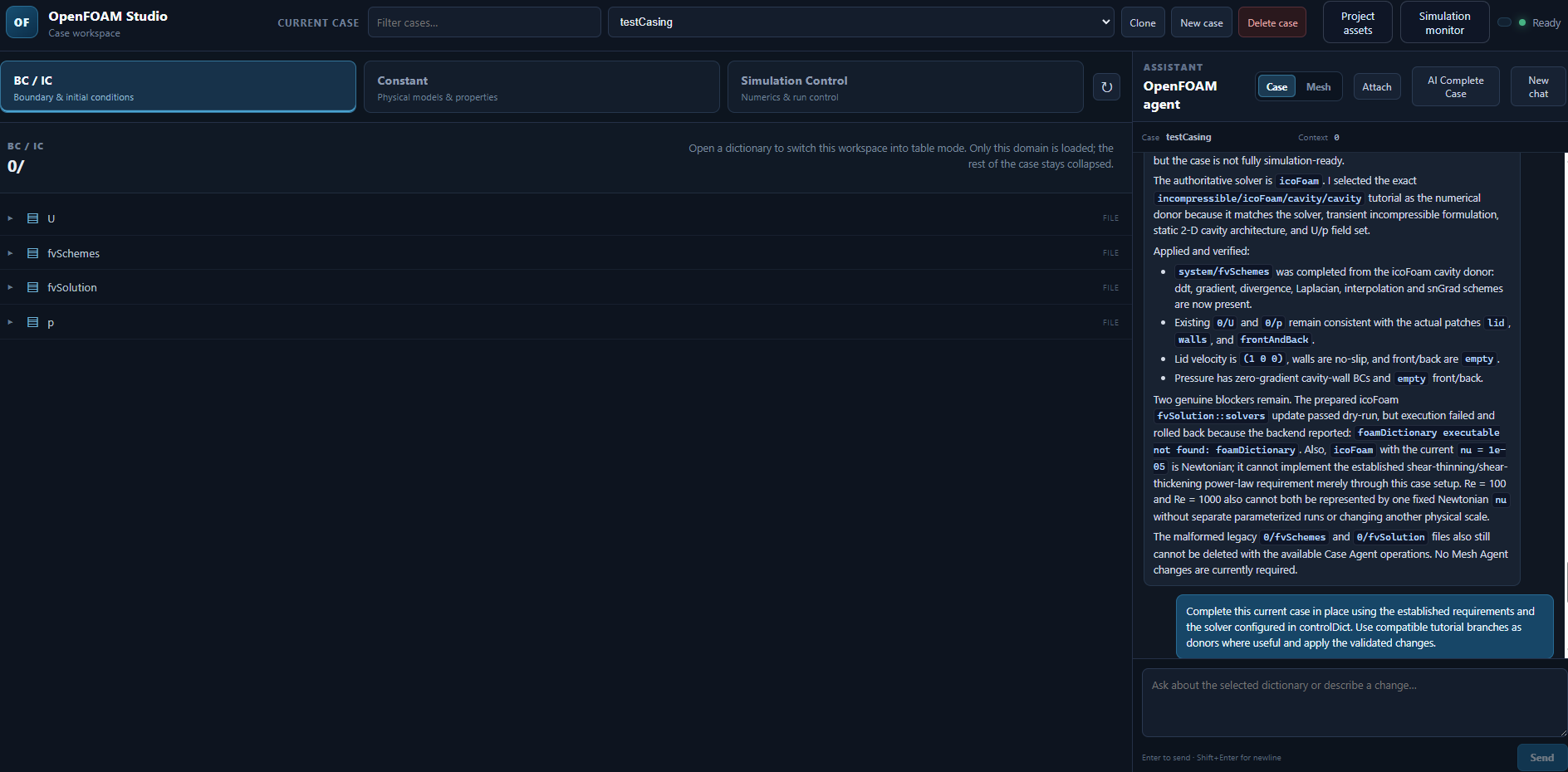
Case workspace
The selected case, dictionary list and assistant stay on the same screen. The assistant can explain what is missing, what was changed and what still needs attention.
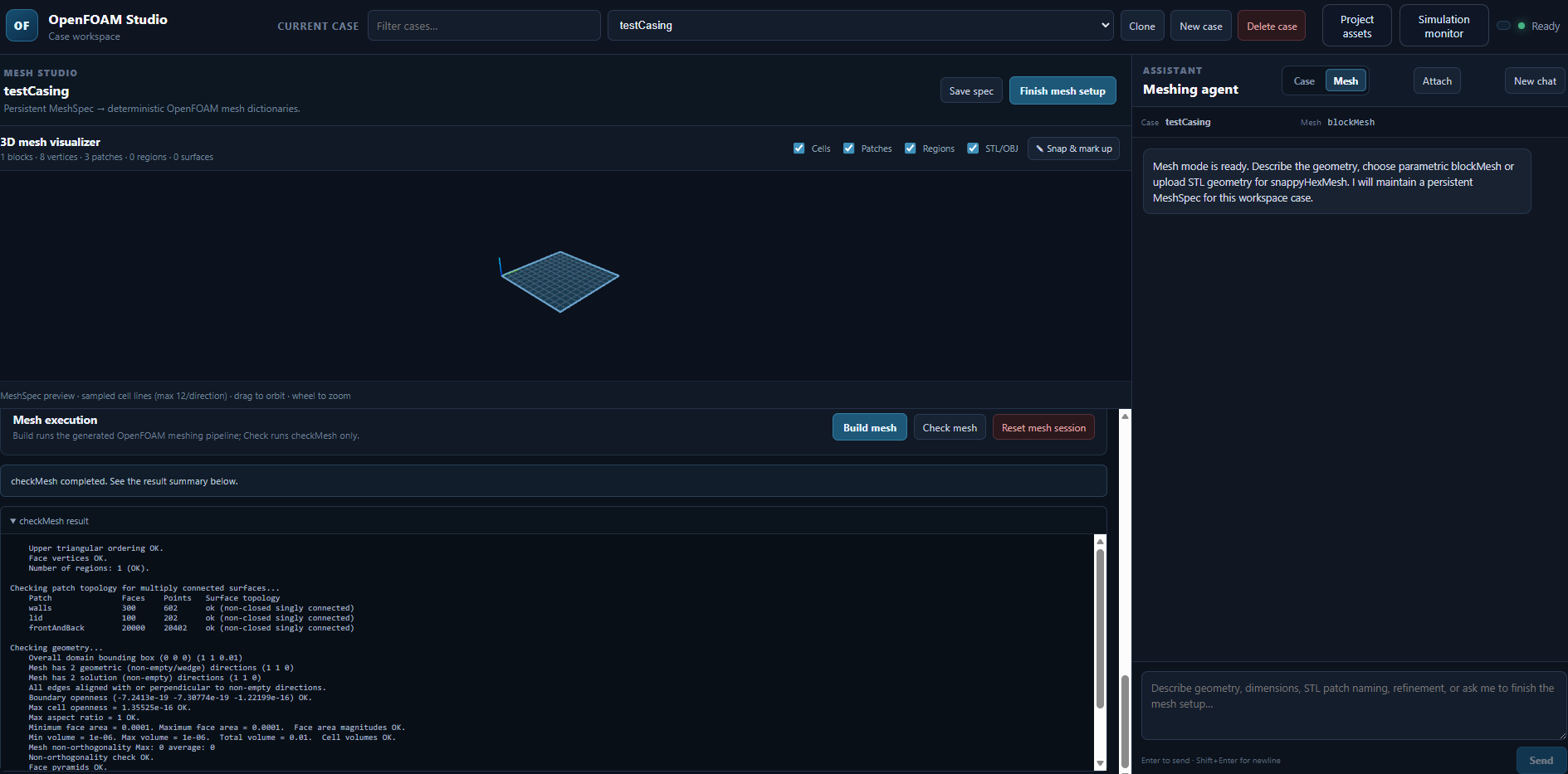
Mesh Studio
A geometry description becomes a persistent MeshSpec. The same workspace shows the preview, visible entities, mesh actions and checkMesh output.
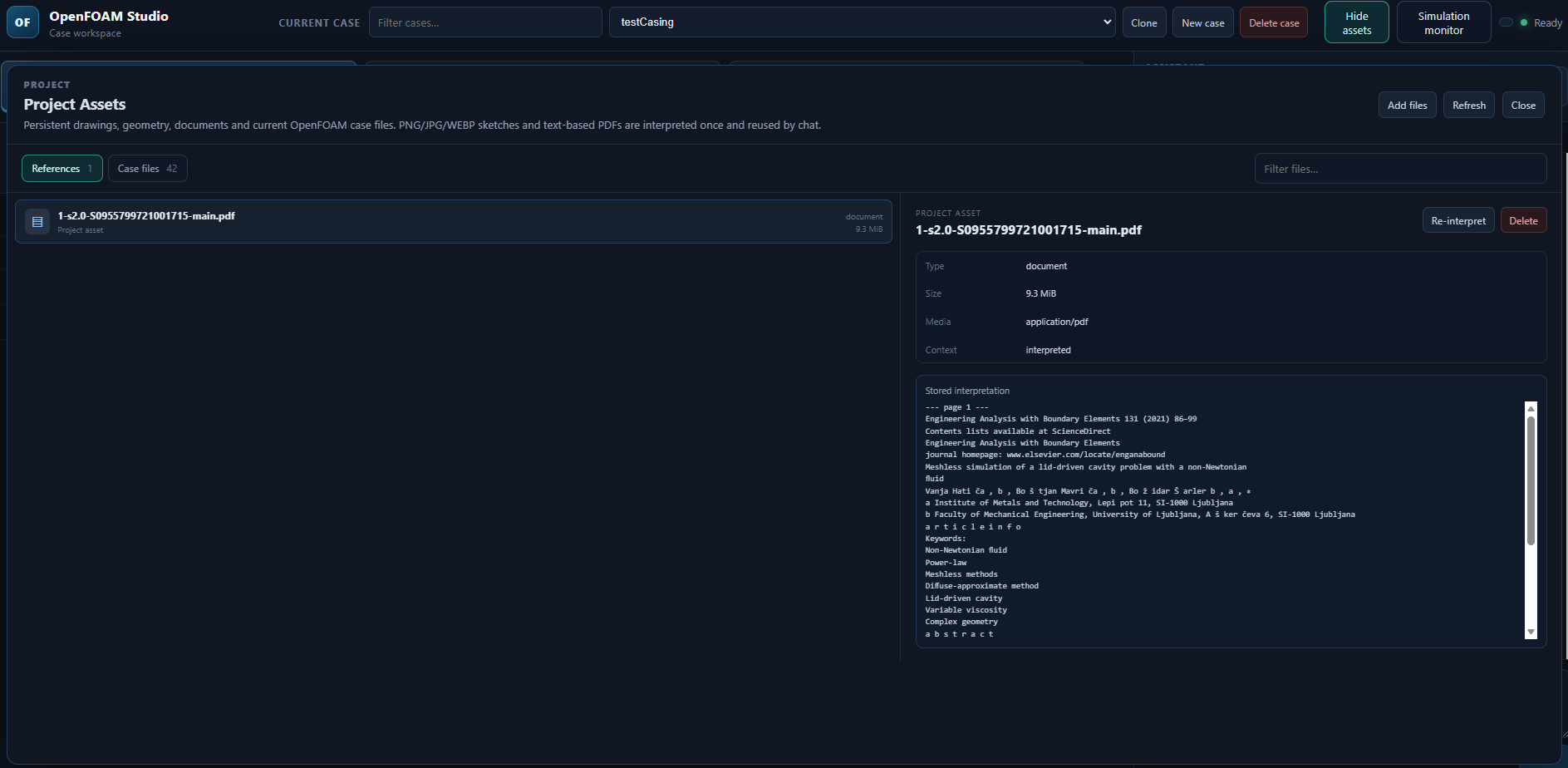
Project Assets
Technical references such as PDFs and drawings can be attached to the project. Their interpretation remains available when the assistant works on the case.
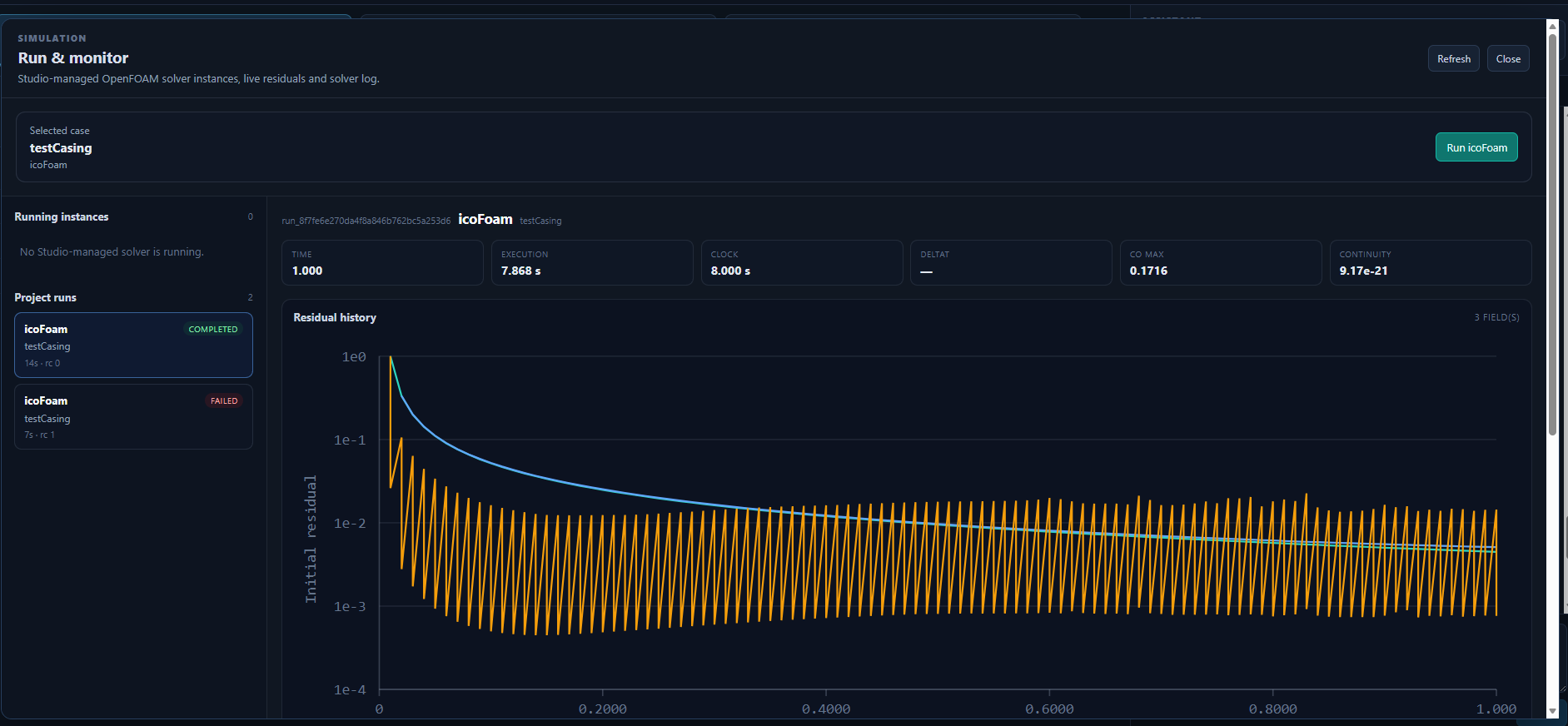
Simulation monitor
Runs have their own status and diagnostics. Residual history, execution time, Courant number and continuity are visible together.
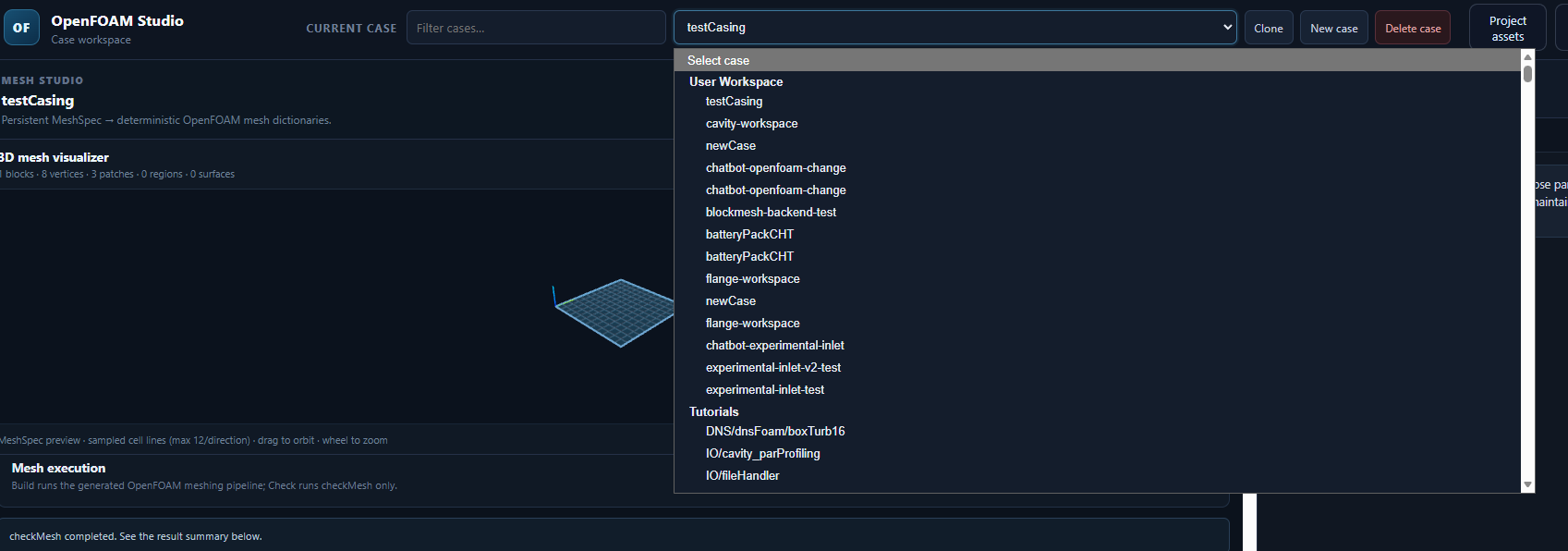
Case selector
User cases and the tutorial library can be selected from the same workspace without losing the current project context.
Tutorial library
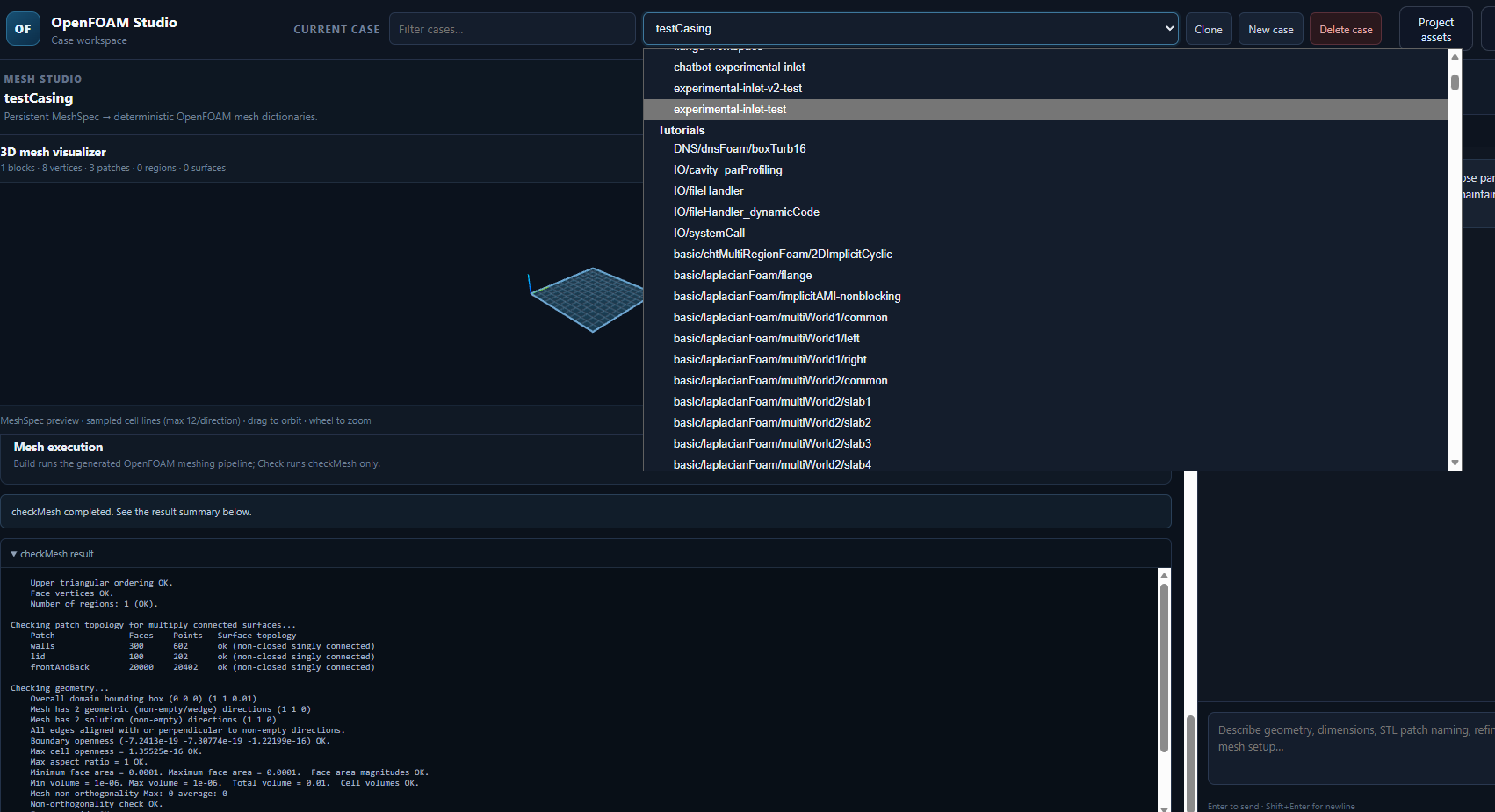
The OpenFOAM tutorial tree is part of the workflow. A compatible tutorial can serve as a starting point when a case needs a new structure.
Why it exists
An OpenFOAM case is not just a folder of text files.
A useful case has to keep its fields, dictionaries, physical models, numerical schemes, mesh and solver controls aligned. Editing one file without checking the others is how reasonable changes become broken cases.
Studio puts a structured layer between the language model and those files. It can inspect the case, retrieve the relevant pieces, prepare an explicit change and leave execution to deterministic tools.
How it works
The assistant proposes. The workflow checks and applies.
The case is treated as a system
OpenFOAM cases are spread across fields, dictionaries, models, schemes, solver controls and includes. A change that looks small in one file can depend on several others being consistent.
The assistant retrieves the relevant context
The workflow can search files, symbols, includes and graph paths before it proposes a change. The model gets the part of the case it needs, rather than a long unstructured dump.
Edits are explicit
The assistant can prepare a change, but the actual mutation is represented as a specific operation against a known target. That makes it possible to inspect the change before applying it.
Builds and checks are separate steps
Preparing a mesh dictionary is not the same as building the mesh. The same applies to preparing a case and running a solver. The interface keeps those steps visible.
Architecture
Keep reasoning separate from file operations.
The reasoning layer works out what it needs to inspect and what action should be prepared. The execution layer performs the exact file operation, case mutation, validation or solver command. A prepared action still needs an explicit execution step.
01User
Natural-language engineering request
+
User
Natural-language engineering request
The workflow begins with an engineering request rather than a low-level file-edit instruction. The system has to translate intent into the OpenFOAM structures that actually control the requested behaviour.
{
  "request": "Switch this case to kOmegaSST",
  "case": "backwardFacingStep2D",
  "goal": "update turbulence configuration safely"
}02Current case context
Carries the active case and the part of it being discussed
+
Current case context
Carries the active case and the part of it being discussed
The assistant receives the active case, selected workspace and relevant selection as structured context. The whole case does not need to be pasted into the conversation.
{
  "workspace": "user-cases/backwardFacingStep2D",
  "activeCase": "backwardFacingStep2D",
  "intent": "change turbulence model",
  "availableContext": [
    "case graph",
    "file search",
    "symbol search",
    "tutorial index"
  ]
}03Assistant plan
Finds what is affected before proposing a change
+
Assistant plan
Finds what is affected before proposing a change
For a turbulence-model request, the assistant may inspect momentumTransport, the relevant field files and a compatible tutorial before preparing any mutation.
Inspect turbulence configuration
Check required k / omega fields
Find a compatible donor/tutorial structure
Generate a proposed delta
04Case graph
Shows the case as connected structure
+
Case graph
Shows the case as connected structure
The graph connects directories, dictionaries, sections, keys and includes. That gives the workflow a way to request the branch relevant to the current task instead of treating the case as one long block of text.
05Change set
Records the proposed modification explicitly
+
Change set
Records the proposed modification explicitly
The proposed change is stored as structured data. It can be inspected before anything is written, and the original case remains separate from the proposed result.
{
  "changes": [
    {
      "path": "constant/momentumTransport/RAS/model",
      "operation": "replace",
      "from": "kEpsilon",
      "to": "kOmegaSST"
    },
    {
      "path": "0/omega",
      "operation": "ensureField",
      "source": "compatible_tutorial"
    }
  ]
}06Controlled edit
Applies exact changes through known operations
+
Controlled edit
Applies exact changes through known operations
The execution layer performs the file operation. It can target a precise dictionary entry, create or inherit a required file, and leave unrelated case content alone.
Before
RAS
{
    model       kEpsilon;
    turbulence  on;
}
After
RAS
{
    model       kOmegaSST;
    turbulence  on;
}07Check and run
The case can now be checked and executed
+
Check and run
The case can now be checked and executed
The result is still a normal OpenFOAM case. Studio helps construct and modify it; standard validation and solver operations still determine whether it runs.
What is in it
The parts needed for actual case work.
Case graph
A structural view of the case that exposes relationships between files, dictionaries, sections and important entries.
Case workspaces
Create, clone, delete and switch between user cases and tutorial cases while keeping the active workspace visible.
Boundary and physical setup
Work through BC / IC, physical properties and simulation control as separate areas around the same case.
Mesh Studio
A persistent MeshSpec connects a geometry description to a 3D preview, generated dictionaries, mesh builds and checkMesh feedback.
Project assets
Drawings, PDFs and other technical references can be attached, interpreted and kept available for later questions.
Simulation monitor
Solver runs are tracked with status, timing, Courant number, continuity and residual history.
Example
Ask for a change. See what is affected.
A request such as “switch this case to kOmegaSST” can affect the model entry, required fields and initial conditions. Studio inspects those dependencies and looks for compatible structure where it is needed.
It then prepares a small, explicit change set. The user can review that change before the execution layer writes anything or runs the case.
Next step
Take the same structure deeper into OpenFOAM.
The next layer is deeper integration across case creation, tutorial reuse, meshing, validation and execution, while keeping the user in control of what is prepared and what is run.